
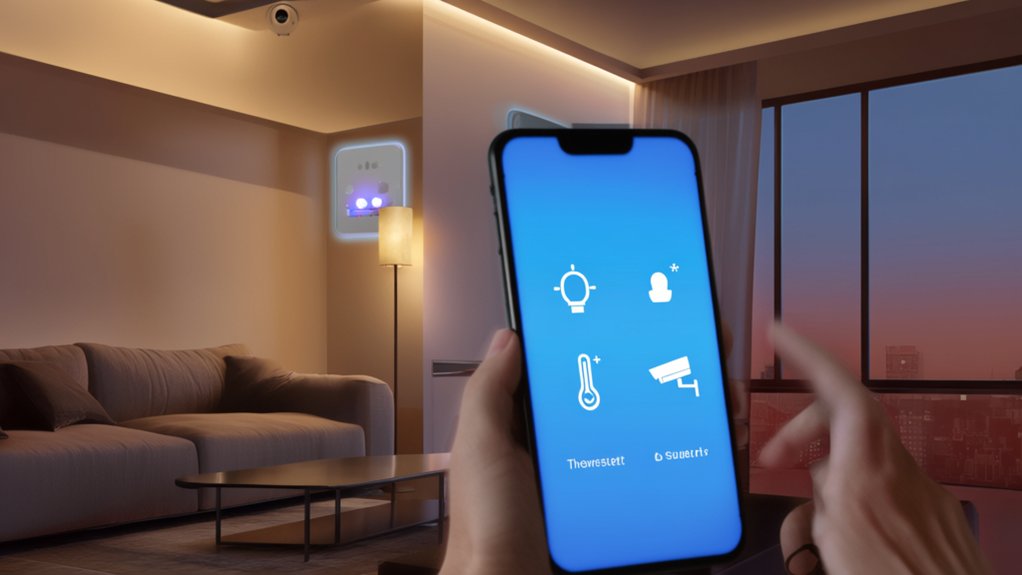

You might wonder if the promise of managing every light, thermostat, and lock from your phone actually holds up in real homes. When you choose the right ecosystem, pair compatible devices, and design logical scenes, you can control ambiance, comfort, and security with a few taps. But the difference between a polished, reliable setup and a frustrating one comes down to specific decisions you make before you buy a single smart bulb.
Key Takeaways
- Choose a compatible smart home platform and app that integrates lighting, heating, and security into one dashboard with voice control support.
- Install smart bulbs, switches, and plugs, then group and name them in the app to create scenes you can trigger or schedule from your phone.
- Connect and calibrate smart thermostats, set schedules and temperature zones, and adjust heating remotely via encrypted, authenticated mobile access.
- Add smart locks and security devices, enable strong authentication, manage access codes, and monitor alerts, logs, and status directly from your phone.
- Secure your system with firmware updates, WPA3 Wi‑Fi, MFA, and privacy settings that limit who can view or control devices through the app.
Pick Your Smart Home Control Method

Before you buy any gadgets, you need to decide how you’ll control your smart home: a single all-in-one app from a major ecosystem (like Apple Home, Google Home, or Alexa), a hub-centered platform (such as SmartThings or Hubitat), or a mix of device-specific apps unified with standards like Matter and Thread.
Each path shapes how you design scenes, schedules, and voice commands for lighting, heating, and security.
Start by listing what you want to automate and how much control you need over energy efficiency. All-in-one apps emphasize simplicity and attractive dashboards. Hub platforms favor deep customization, local processing, and fine-grained automation.
Mixed setups demand more configuration but let you curate best-in-class devices while keeping a coherent, phone-first control experience.
Get the Right Gear for Phone Control
Once you’ve chosen how you’ll run your smart home, you need hardware that actually responds to your phone: compatible lights, switches, plugs, sensors, locks, and thermostats that speak the same language as your chosen platform. Prioritize gear that lists your ecosystem, supports Matter or Thread, and receives regular firmware updates.
Evaluate Smartphone ergonomics: make sure the app layout, control sliders, and scene buttons feel intuitive on your screen size and dominant hand. Poorly designed apps make premium hardware frustrating.
Specify devices with responsive dimming, clear status feedback, and silent or low-profile mechanisms that complement your interiors. Look for seamless Voice command integration with your preferred assistant, so every device can be triggered by phone, watch, or smart speaker without awkward workarounds.
Set Up Phone Control for Smart Lighting
To control your lighting from your phone with precision, you’ll start by choosing smart bulbs that match your fixtures, network, and preferred ecosystems (like Apple, Google, or Amazon).
Next, you’ll connect those lights to the manufacturer’s app or your central smart home app, ensuring every room and fixture is clearly named and grouped.
From there, you’ll create automated lighting scenes that coordinate brightness, color temperature, and timing to support how each space looks and functions throughout the day.
Choosing Compatible Smart Bulbs
How do you pick smart bulbs that not only respond from your phone but also fit seamlessly into your home’s design and existing tech? You start by treating Smart bulb compatibility as non‑negotiable and aesthetics as equally important.
1. Check ecosystem support
Confirm bulbs work with your phone’s OS, preferred voice assistant, and any existing hubs so everything functions in one unified system.
2. Match bulb type and fittings
Verify base size (E26, GU10, etc.), shape, and dimmer compatibility with existing fixtures to avoid flicker and premature failure.
3. Prioritize lighting color customization
Look for full RGB and tunable white to shift from warm evening light to crisp task lighting on demand.
4. Assess brightness and quality
Compare lumens, color accuracy (CRI), and beam angle to maintain visual comfort and a coherent lighting scheme.
Connecting Lights To App
With the right bulbs chosen, the next step is turning them into a responsive lighting system you can command from your phone. Start by installing each bulb, then power cycling the fixture so your app can detect it. Download the manufacturer’s app, create an account, and connect to your 2.4 GHz Wi‑Fi network if required.
Add bulbs one by one, naming them by room or function for intuitive control. During setup, confirm firmware updates; they often improve smart bulb durability, responsiveness, and color accuracy.
Next, refine app interface customization: group lights into zones, set favored color temperatures, and prioritize controls you use most on the home screen. Finally, test dimming, on/off response, and remote control outside your home network.
Creating Automated Lighting Scenes
Once your bulbs respond reliably in the app, you can elevate basic on/off control into automated lighting scenes that match specific activities, moods, and times of day. Smart lighting becomes most powerful when each scene has a clear purpose, calibrated brightness, and carefully chosen color temperatures for function and comfort.
- Define core scenes: morning, work, relax, cooking, movie, and bedtime, each with distinct intensity and warmth.
- Use automated routines to trigger scenes by schedule, sunrise/sunset, or your phone’s geolocation.
- Segment spaces: create separate scenes for task areas, circulation paths, and feature zones to avoid visual clutter.
- Fine-tune progressions: apply gradual fades (10–30 seconds) so scenes shift smoothly, preserving your eyes’ adaptation and overall ambience.
Control Heating and Thermostats From Your Phone
Even before you walk through the front door, you can fine-tune your home’s climate from your phone with a modern smart thermostat and connected heating system. You don’t just toggle temperatures; you design schedules, zones, and comfort profiles that adapt to occupancy, weather, and time of day.
To maximize energy efficiency, you set setback temperatures, geo-fencing, and adaptive learning so the system trims waste without sacrificing comfort. Detailed usage reports reveal where you’re overspending, while automation keeps adjustments consistent.
You also manage user privacy: lock app access with biometrics, restrict guest accounts, and disable unnecessary data sharing or location tracking. Integrate with voice assistants only when you can review permissions.
Thoughtful configuration turns your heating control into a discreet, responsive design layer.
Manage Home Security and Cameras on Your Phone
With your phone, you can architect a security layout that pairs live alerts and notifications with precise event filters, so you only see what actually matters.
You’ll configure remote camera access control to dictate who can view or manage each feed, and under what conditions.
Finally, you’ll integrate smart locks securely, aligning authentication, encryption, and access logs so your entry points match the rigor of your cameras.
Live Alerts And Notifications
Although smart cameras and sensors quietly monitor your home in the background, live alerts and notifications on your phone are what transform that data into immediate, actionable insight. You decide what’s important, when you’re notified, and how that information appears, balancing energy efficiency with user privacy and peace of mind.
- Event-based triggers – Get alerts only for defined events (door opened, motion after midnight), not every minor change.
- Priority levels – Classify alerts as critical, standard, or low to avoid notification fatigue.
- Rich notification design – Use thumbnails, location tags, and clear labels so you can assess a situation from your lock screen.
- Privacy-aware settings – Mask faces in previews, mute alerts in private zones, and encrypt notifications so sensitive details never leak.
Remote Camera Access Control
When you manage your home’s cameras from your phone, you’re not just watching a live feed—you’re controlling who can see what, when, and from where. You define access profiles, assign permissions, and schedule when each camera’s view is available, even to family members or guests.
Start with smart sensor placement: position cameras to capture entry paths, transition spaces, and exterior approaches, not just obvious rooms. Use overlapping angles to eliminate blind spots while respecting privacy in bedrooms and bathrooms.
On your phone, you adjust resolution, motion zones, and recording rules per camera. Tie cameras to voice command integration so you can say, “Show driveway camera,” and instantly view it.
Always secure remote access with strong authentication and encrypted connections.
Integrating Smart Locks Securely
Your phone doesn’t just orchestrate your cameras; it can also act as the command center for your home’s physical access through smart locks. To integrate locks securely, you need to design for both digital and physical resilience, ensuring every tap on your screen translates into a verifiable, encrypted action at the door.
- Choose locks that use modern encryption protocols (such as AES-256, TLS 1.2+), not outdated Bluetooth standards.
- Enforce strong app authentication: hardware biometrics, unique PINs, and no password reuse.
- Configure access design: temporary codes for guests, audit logs, and geofenced auto-lock behaviors.
- Prioritize smart lock maintenance: timely firmware updates, battery health monitoring, periodic access review, and prompt revocation of lost or compromised phones.
Create Routines and Automations That Just Work
Instead of simply turning devices on and off from an app, you can design routines and automations that anticipate needs and run reliably in the background. Start by mapping daily patterns: wake-up, work, arrival, sleep. For each, define lighting, heating, and lock states, then trigger them by time, presence, or sensor data.
Prioritize energy efficiency: dim lights gradually, lower heating when you’re away, and avoid running high‑draw devices simultaneously. In your app or hub, group devices by room and function so scenes feel cohesive and intentional.
Check device compatibility before building complex routines; prefer platforms that support Matter, Thread, or robust APIs. Test every automation, refine delays and conditions, then document key routines so you can quickly adjust them as your lifestyle evolves.
Keep Your Smart Home Secure and Private
Thoughtful routines only work if the devices behind them stay protected, so treat security and privacy as core design constraints rather than afterthoughts. Start by reducing attack surfaces and controlling who can see, trigger, or reconfigure your lighting, heating, and security devices.
1. Secure the network layer
Place smart devices on a dedicated Wi‑Fi network, disable unused remote access, and prefer WPA3 with strong passphrases.
2. Harden user authentication
Use unique logins, enable multi-factor authentication, and avoid account sharing; grant per-user roles when platforms support them.
3. Enforce strong encryption protocols
Favor ecosystems that support end-to-end encryption protocols for video, commands, and status data.
4. Minimize and govern data
Turn off unnecessary cloud logging, regularly review app permissions, and audit access histories for locks, cameras, and thermostats.
Fix Common Lighting, Heating and Security Issues
When lights flicker, rooms overheat, or cameras go offline, you’re not just annoyed—you’re losing the reliability that makes a smart home worth having. Start with smart bulb troubleshooting: confirm the bulbs are on the same Wi‑Fi band, then power‑cycle fixtures and your router.
In your app, check firmware versions, update scenes, and verify dimmer compatibility to prevent strobing and color shifts.
For heating, focus on Thermostat calibration. Compare the thermostat reading with a reliable room thermometer; if it’s off, adjust the offset in the app, relocate the device away from vents or direct sun, and refine schedules by zone.
For security, stabilize your network: assign fixed IPs to cameras, enable QoS for video, and verify encryption and passwords.
Frequently Asked Questions
Can Multiple Family Members Control the Same Smart Devices From Their Own Phones?
Yes, multiple family members can control the same smart devices from their own phones. You configure family member permissions in the app, then enable device access sharing, ensuring role-based control, secure logins, and clearly defined access levels for each user.
What Happens if My Phone Battery Dies While I’M Away From Home?
Your control freezes, but your home keeps humming like clockwork; scenes and schedules still run. If devices support battery backup, they’ll bridge a power outage, and you can regain access from another phone, web dashboard, or trusted family member’s app.
Can I Still Use My Devices Manually if the App Stops Working?
Yes, you can. Most systems include a physical manual override on switches, thermostats, and locks. You’ll still operate devices directly, while some hubs retain local voice command support, ensuring core functions work even if the app fails.
How Much Mobile Data Do Smart Home Apps Typically Use Each Month?
You’ll typically use under 100–300MB monthly; basic controls need minimal data consumption, while live video feeds dominate usage. To optimize app performance, disable constant remote streaming, tune notification frequency, and prioritize local automation over cloud-dependent routines.
Will My Smart Devices Keep Working if the Manufacturer Shuts Down Their Servers?
They might not. Cloud‑dependent gear can lose app control, automations, even basic functions. You should check local‑control support, device compatibility with open hubs, firmware‑export options, and ongoing update policies to minimize security concerns and sudden “brick” risks.
Conclusion
When you orchestrate lighting, heating, and security from your phone, your home becomes a finely tuned instrument instead of a loose collection of gadgets. You’re not just tapping icons—you’re designing experiences, from sunrise brightness to night‑mode safety. By choosing the right ecosystem, curating devices, and refining automations, you turn routines into a quiet, reliable backdrop. In the end, your phone becomes the remote control for a home that feels both effortless and intelligently bespoke.